Cleaning the keyboard
The main event. Lock it, then brush, wipe, or blast out the crumbs without firing off a single keystroke.
Free macOS utility
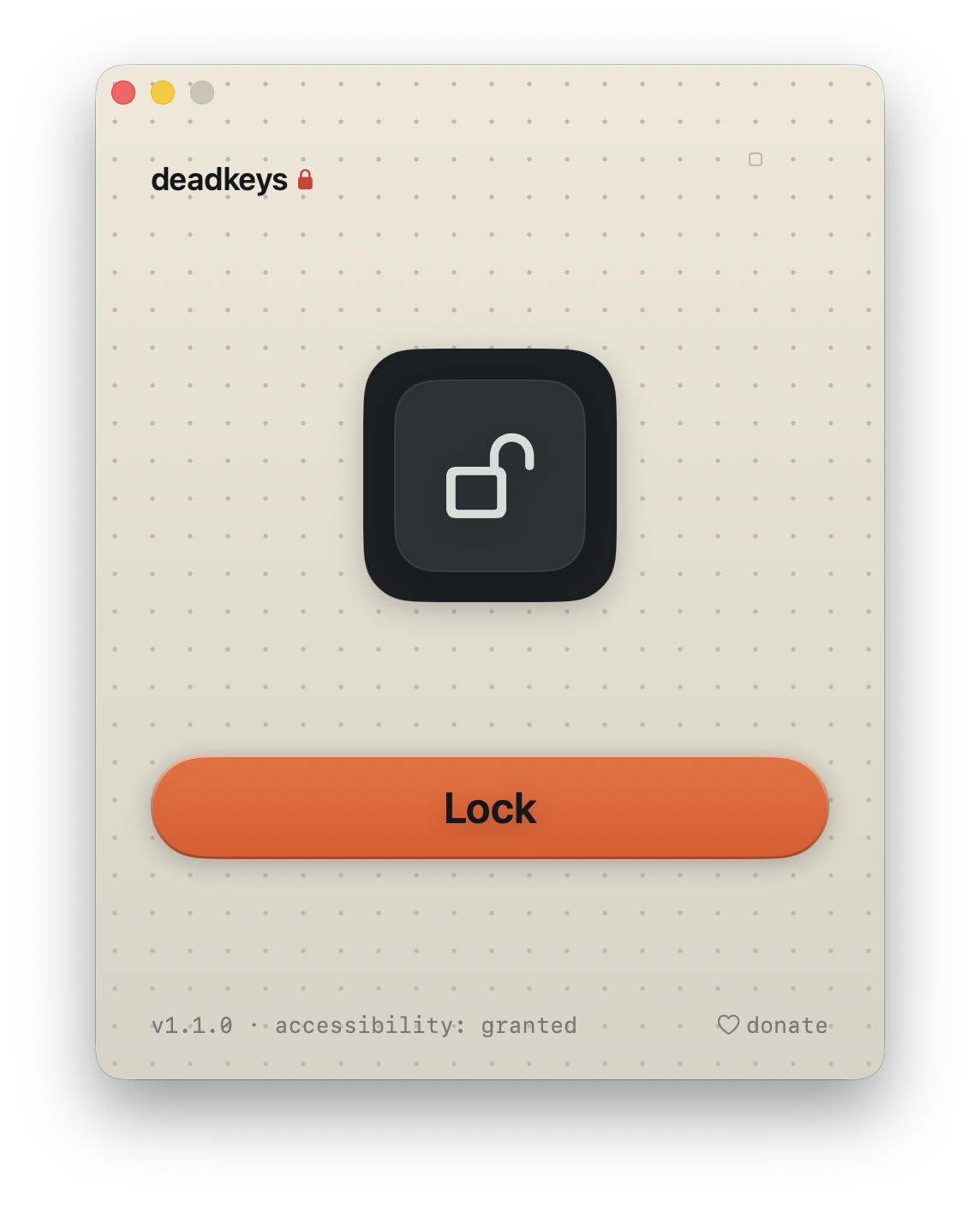
deadkeys locks your Mac keyboard on demand, so you can wipe it down without typing a thing. Every key goes dead, function and media keys included, until you click to unlock.
What it does
You cannot properly clean a keyboard while the Mac is listening to it. Every wipe turns into a burst of typos, triggered shortcuts, and apps thrown open. deadkeys ends that with one button. Click lock and every key goes dead, from the letters and modifiers to the function row and the media keys. Wipe it down, press anything you like, and the Mac quietly ignores all of it.
Your mouse and trackpad never stop working, so unlock is always one click away. Click it when you are finished and the keyboard picks up exactly where it left off. Nothing you pressed was typed, triggered, or recorded.
Use cases
The main event. Lock it, then brush, wipe, or blast out the crumbs without firing off a single keystroke.
Clean your display without your hand or sleeve catching a key and scrubbing through your work.
Step away with a cat on the desk or a toddler nearby. The keyboard ignores everything until you are back.
A render, an install, a backup. Lock the keys so a stray press cannot interrupt or cancel them.
Watching, demoing, or showing something full screen. No accidental space bar, no surprise shortcut.
Any moment you want the keyboard to simply do nothing until you decide otherwise.
How it works
Open deadkeys and grant Accessibility once, the permission macOS requires to lock the keyboard. From then on it sits in your menu bar, ready whenever you need it.
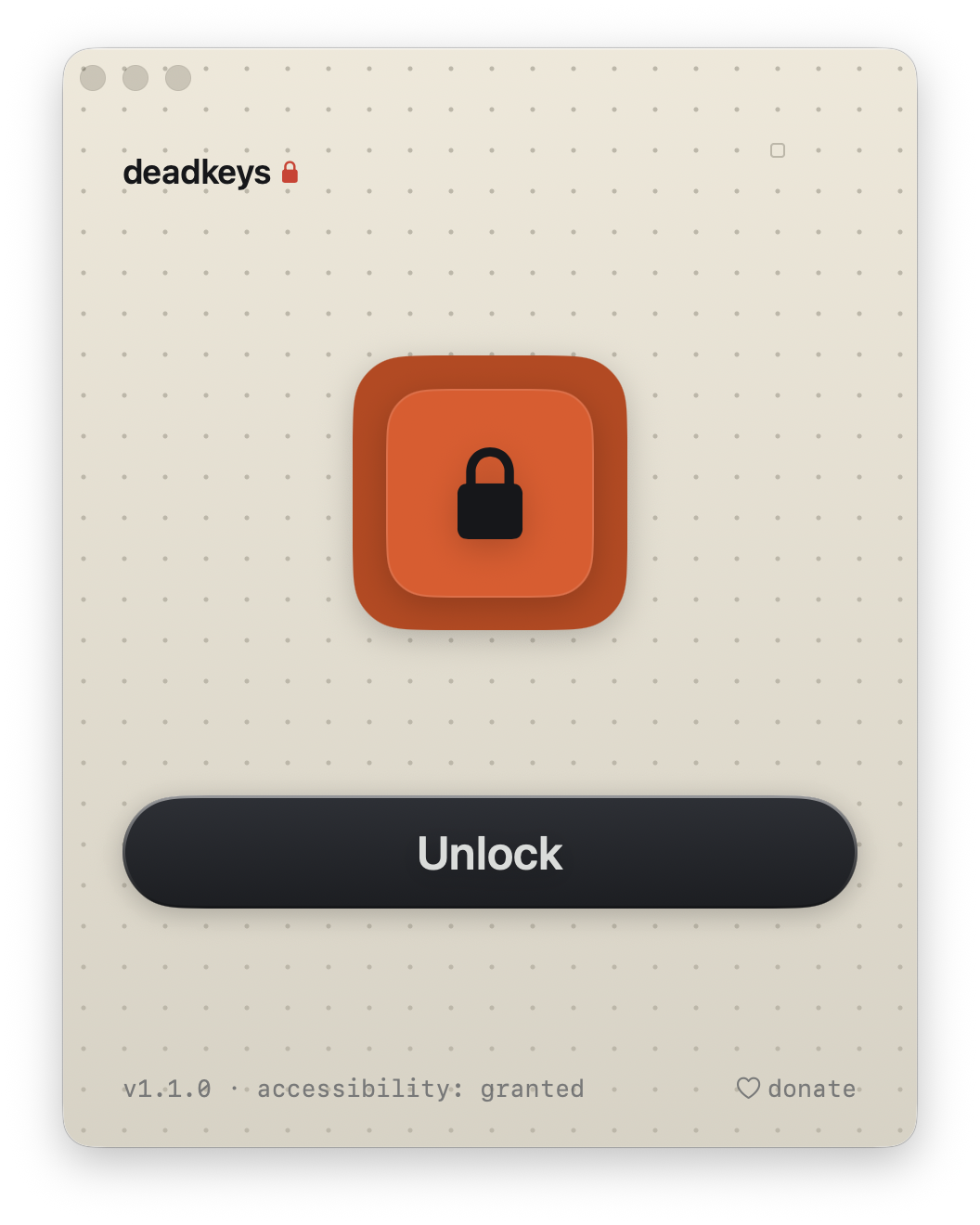
One click and the entire keyboard goes dead, function and media keys included. The window and menu bar icon switch to their locked state, so you always know it is locked.
Finished? Click unlock and your keyboard comes straight back, exactly as it was. The mouse is never blocked, so the way out is always one click away.
You cannot lock yourself out. If the app quits, crashes, or anything goes wrong, the keyboard fails open and comes straight back.
Features
Download
A direct download. No account, no catch. Notarized by Apple, so it opens cleanly on any Mac.
FAQ
Yes. deadkeys is completely free. There are no accounts, no in-app purchases, and no ads.
deadkeys runs on macOS 14.0 (Sonoma) or later, on both Apple silicon and Intel Macs.
Click unlock. deadkeys never blocks the pointer, so the unlock control is always reachable. You can also quit the app to unlock instantly.
Blocking the keyboard is only possible through macOS's Accessibility permission. It is the one control the system provides for this. deadkeys uses it for a single purpose: to drop keypresses while locked. It never reads, records, or stores what you type. You grant it once, on first launch.
No. deadkeys blocks keys; it does not read them. While locked, every keypress is discarded the instant it happens, never logged, stored, or sent anywhere. The keyboard tap only exists while the lock is on and is removed the moment you unlock. There are no accounts and no analytics, and the only network request it ever makes is an occasional check to GitHub for updates.
deadkeys has no accounts and no analytics, and the only network request it ever makes is an occasional check to GitHub for app updates. It only ever blocks the keyboard, never the mouse, and it fails safe to unlocked: if the app quits, crashes, or the lock ever stops responding, your keyboard comes straight back.
Yes. deadkeys disables every key, including the function row and the media and brightness keys, so nothing slips through while you clean.